SEARCH HELP
How to Create an Owner Mailing List, Home Owner List or Mailing Labels
To create an owner mailing list, start by navigating to the Search | Real Property page. Select the "Subdivision" tab.
Begin typing the subdivision name, once you have entered at lest 5 characters, the search will execute. You may also hit [Enter] or click the [Run Search] button. The example below shows a search for a subdivision, Alaqua Lakes:
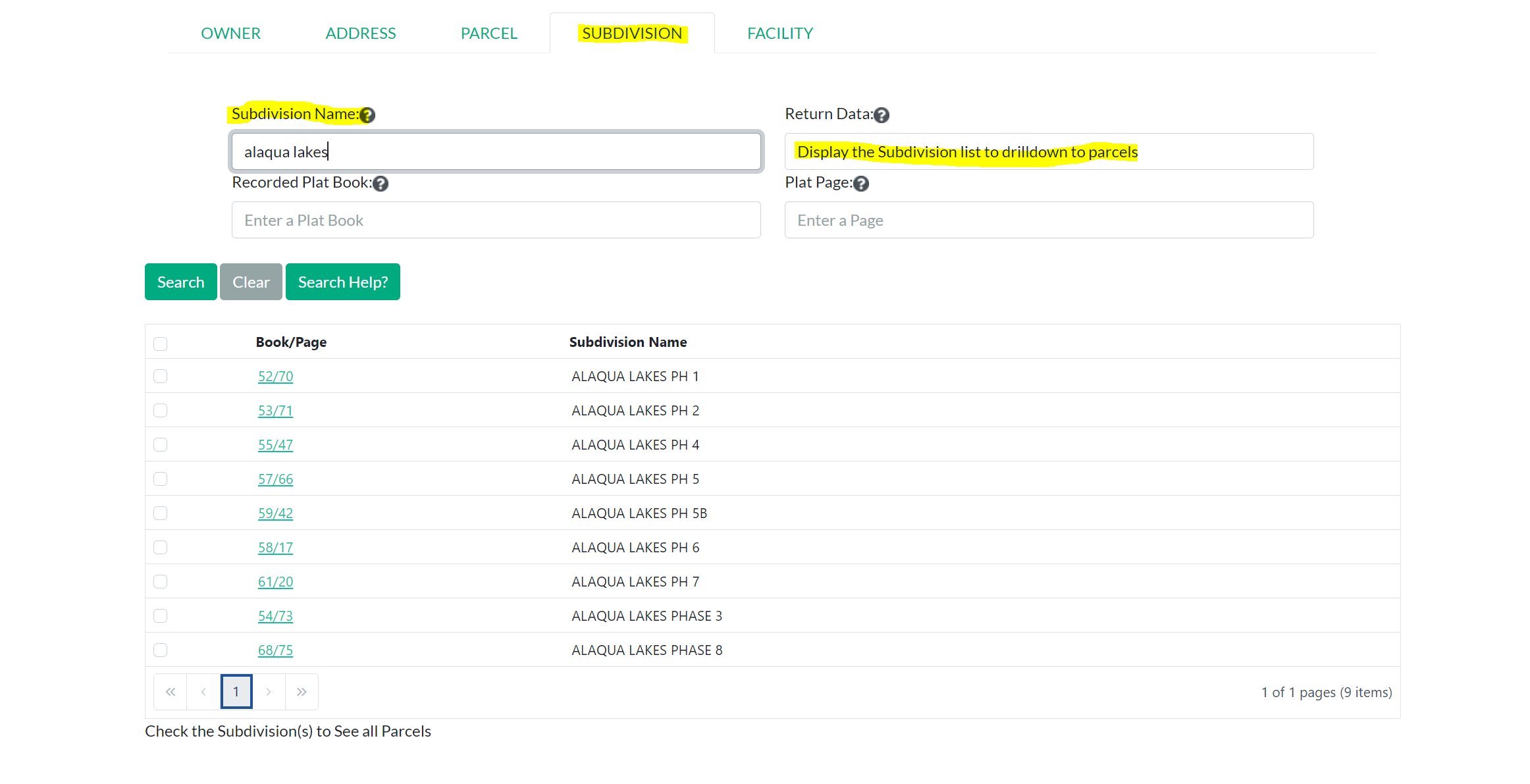
You can use the checkbox on the left-hand side of the results grid to select the subdivisions you are interested in. You may select multiple. If you would like to select all of the results, click the checkbox in the header. As you select the checkbox(es) the corresponding parcel will be displayed in the parcel grid beneath the subdivisions. Continuing with our example, if I select all the checkboxes:

After you have all the parcels, use the "Show Additional Parcel Details" toggle to display the complete Owner/Mailing label details. Finally, you can click the [Excel Export] button and get an Excel file export. The Owner/Mailing address in the Excel contains carriage returns and is suitable for use in mailing labels or a Word-like mail merge.
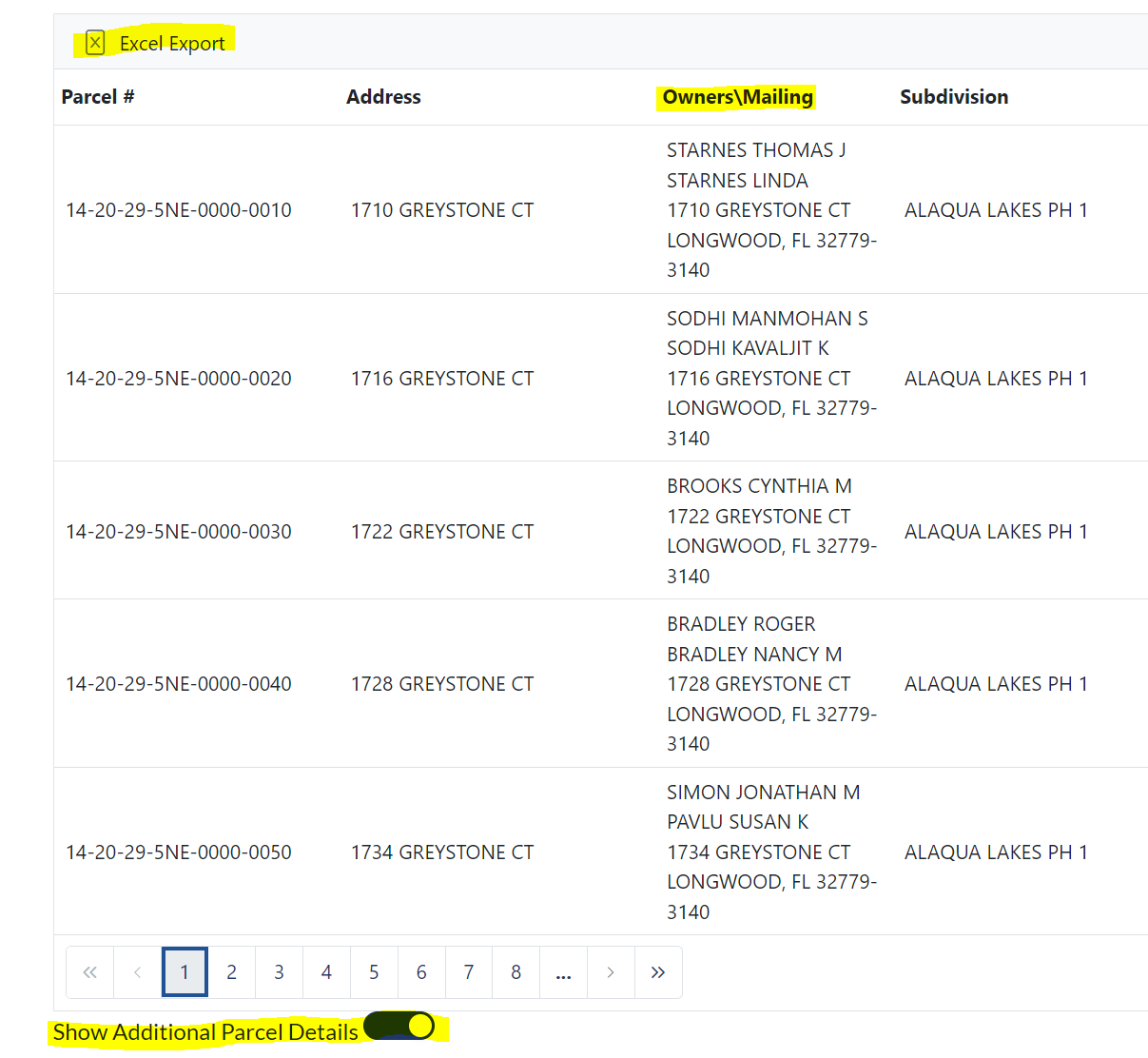
If you would like to create a PDF of mailing labels, scroll to the bottom of the parcel listing and you will see
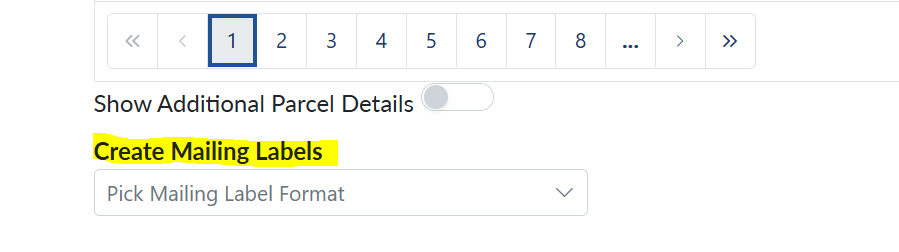
Click the down arrow to see the options for mailing label sizes

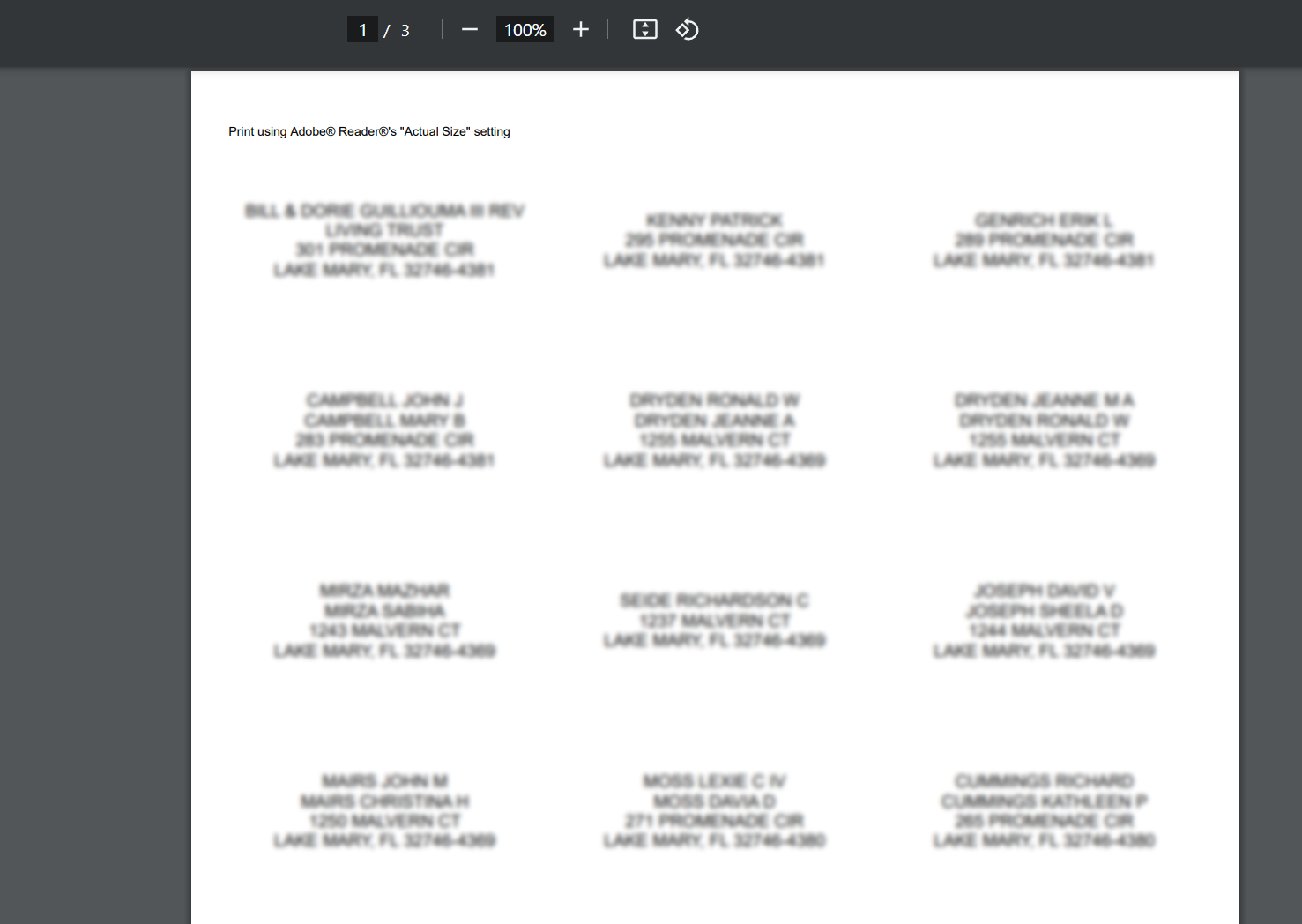
Once you select an option a new window will appear with your PDF mailing labels, ready for printing
To create an owner mailing list, start by navigating to the Search | Real Property page. Select the "Subdivision" tab.
Begin typing the subdivision name, once you have entered at lest 5 characters, the search will execute. You may also hit [Enter] or click the [Run Search] button. The example below shows a search for a subdivision, Alaqua Lakes:
You can use the checkbox on the left-hand side of the results grid to select the subdivisions you are interested in. You may select multiple. If you would like to select all of the results, click the checkbox in the header. As you select the checkbox(es) the corresponding parcel will be displayed in the parcel grid beneath the subdivisions. Continuing with our example, if I select all the checkboxes:
After you have all the parcels, use the "Show Additional Parcel Details" toggle to display the complete Owner/Mailing label details. Finally, you can click the [Excel Export] button and get an Excel file export. The Owner/Mailing address in the Excel contains carriage returns and is suitable for use in mailing labels or a Word-like mail merge.
If you would like to create a PDF of mailing labels, scroll to the bottom of the parcel listing and you will see
Click the down arrow to see the options for mailing label sizes
Once you select an option a new window will appear with your PDF mailing labels, ready for printing


